Warning: out-of-date content!
This page, in its original form, dates back to 2010. Much has changed since then, with the advent of HTML5. The content is therefore out-of-date, particularly the section on 'Captioning and positioning images'. However, I've kept it for its historical interest - an example of how an amateur web builder approached things back in the distant past.
I've deleted dead links, and combined my original pages on 'Building and maintaining web pages' and 'Captioning and positioning images'. Otherwise I've left everything as it was, and I don't intend to update it any further.
* * *
Some basic advice about building and maintaining web pages
I've learnt quite a lot about building and maintaining web pages by building this site. Most of what I've learnt can be found in any good book about XHTML and CSS, or from the internet, using Google.
I build web pages in a very old fashioned way - I hand-craft the pages using nothing more than Microsoft Notepad, about the most basic text editor you can find. This means I have to try to understand what I'm doing.
Some basic advice:
- Understand and apply the principles of semantic mark-up. Keep meaning separate from appearance.
- Make your pages standards compliant - it's the best way of future-proofing them.
- Use XHTML - the disciplines it imposes lead to good mark-up
- Use external cascading style sheets (CSS) - making it easier to give a consistent appearance to pages, quicker to build pages, easier to maintain the site and easier to change your mind.
- Never use tables to position things on the page - CSS can do the job better (but tables are fine for tabular data, their intended purpose).
- Check your web pages and CSS using the World Wide Web Consortium's (W3C) free Markup Validation Service and CSS Validation Service. Your web pages may render acceptably in Internet Explorer, but still contain errors. Checking them eliminates the errors.
- Think about accessibility - its not too difficult to meet the basic minimum level recommended by the World Wide Web Consortium's Web Content Accessibility Guidelines.
- Don't bother with weird hacks to deal with the eccentricities of old browsers. Its not worth it - stick to standards compliant mark-up. But do check how the page renders in several different browsers - I check with Internet Explorer (for Microsoft quirks), Firefox (which often shows up mark-up errors, as it tends to be very literal in its rendering) and Chrome (which is probably the future). The other two to consider are Safari and Opera.
Captioning and positioning images
I've made some notes on captioning and positioning images, as for some reason this aspect of building a web page is often dealt with inadequately in the 'how to' books on HTML and XHTML.
The problem with images
You would have thought that captioning and positioning images on a web page would be very straightforward, but it is not entirely so. There are two problems: the <img> tag is an in-line element, and XHTML has (as yet) no caption tag for images similar to the <caption> tag for tables.
Adding captions semantically and positioning images using CSS
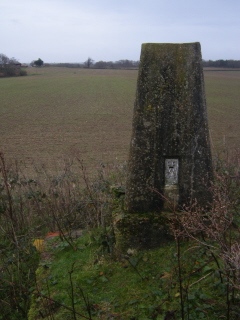
- Trig point at TQ422200, Founthill (flush bracket No S5101)
Being a standards purist, I have been searching for a satisfactorily semantic way of adding captions. I think I've finally found one thanks to an old blog from Nater Kane (2006, no longer accessible). He argued that since we use captions to describe what is represented visually in an image, using a definition list (<dl>) is the most appropriate solution to this issue, with the image as the term to be defined (<dt>) and the image caption as the term's definition (<dd>).
This is an elegant solution, as it creates a logical link between image and caption and keeps the mark-up rigorously semantic. The definition list is a block element, which makes positioning using CSS easy. And the solution works in practice.
Having found a semantic way of adding captions, the next problem was to position the images and style the captions using CSS. I wanted three options: image + caption floated to the right, image + caption floated to the left, and image + caption centred. I also needed to accommodate the two standard widths of image I've adopted, 240 px and 320 px.
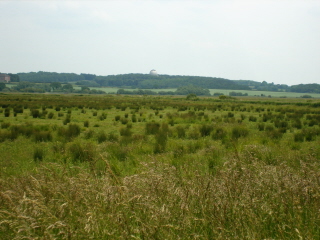
- Pevensey Levels
My solution was to create five different classes that can be applied to the definition list, three to control position (imgleft, center, imgright) and two to declare the width (port [for 'portrait', 240 px wide], land [for 'landscape', 320 px wide]). [The class 'center' is simply a misspelling. It ought to have been 'centre', but it would be just too much effort to correct it now.]
Each definition list containing an image and its caption is assigned two classes, one for position and one for width. For example: <dl class="imgright port">, for an portrait orientated image (with a width of 240 px) to be floated to the right.
Separately, I created a class called imgcaption to style the definition (<dd>). Note that the text alignment of the caption is dealt with by the class applied to the definition list controlling position (imgleft, center, imgright), not by the imgcaption class.
To see an example of the mark-up, see the source for this page (Page > View source in Internet Explorer). And have a look at the associated cascading style sheet to see how the positioning and styling work.
Non-standard image sizes
Floated elements must have a declared width.
Occasionally I want to use a non-standard picture size. In these cases, I always centre the picture, to avoid the need to declare a width. The definition list containing the image and its caption is assigned only one class, 'center'.

- Joseph Mallord William Turner: Chichester Canal, circa 1828 (Tate Collection)
Note that in this case, because no width is defined, the Caption does not neatly wrap to match the picture width. Not, I think, a serious defect.
Similarly, if I need two (or more) side-by-side images with a common caption, I simply centre the definition list by assigning it the class 'center'. In this case the term to be defined (<dt>) contains the two images, and the term's definition (<dd>) contains the common caption. Each image is given a different title, revealed as a 'tooltip' when the cursor is placed over the particular image.
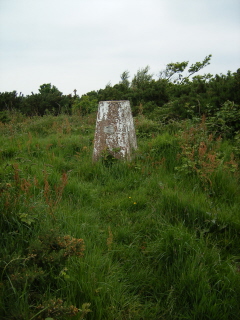
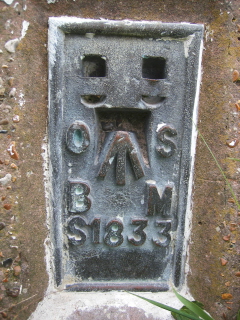
- North's Seat - trig point
Pictures without captions
On some occasions I want to add pictures without captions - for example, the vignette of a plant I put between the sections of a page. In these cases, it is simplest to convert the image into a bock element by wrapping it in a paragraph tag (<p>). I always want these images centred, so the paragraph is assigned the class 'center'.